 PixelDrop
How to use PixelDrop
A plain-language guide for people who have never used cloud storage. No technical knowledge needed — if you can send an email, you can use PixelDrop.
- What is cloud storage?
- Get started
- Connect Pixeldrain (API key)
- Upload & find files
- Share
- Phone & app
- iPhone Shortcut
- Sign in without a password
- Automatic backup
- Your recovery key
- Space & plans
- Keeping files safe
- Proof of existence
- Problems?
- Words explained
What is cloud storage?
Cloud storage is a safe place on the internet where your files live, instead of only on your computer or phone. That means you can open them from any device, send someone a link instead of a heavy email attachment, and still have your photos and documents if your computer breaks or gets lost.
PixelDrop is your own private space of this kind. Your files are stored in your own Pixeldrain account: connect it in Settings with its API key and you can use all of its space. You decide who sees what: nothing is public unless you share it.
1. Create your account
- Click “Get started” on the home page and choose a username (3 to 20 letters, numbers or underscores), your email and a password of at least 8 characters. Pick a password you don't use anywhere else.
- Confirm your email. We send you a short code by email; type it in. No email? Look in your spam or junk folder, and wait a minute or two.
- Optional but recommended: turn on two-step login. In Settings, choose an authenticator app or an email code. It means a stolen password alone can't open your account.
Connect your Pixeldrain account (about 2 minutes)
PixelDrop keeps your files on Pixeldrain, a free file-hosting service, and adds the tools on top: share links that expire, contacts, TimeVault backups, proof of existence and one simple dashboard. You can start right away on PixelDrop's shared space, but connecting your own Pixeldrain account removes that limit and is the recommended setup. To connect it you need an API key: a long, password-like code that lets PixelDrop save files into your Pixeldrain account.
- Create a free Pixeldrain account. Go to pixeldrain.com/register and sign up. Already have an account? Log in instead.
- Create an API key. While logged in to Pixeldrain, open pixeldrain.com/user/api_keys, create a new key (any name works, for example “PixelDrop”) and copy it.
- Paste it into PixelDrop. Come back here, open Settings, find Pixeldrain account, click Connect Pixeldrain, paste the key and click Connect this key. You will see “Connected as …” when it worked.
Your key is stored encrypted and is only used to save and read your files. You can disconnect it any time from the same place; files already uploaded stay where they are. Prefer not to? Skip this step — PixelDrop keeps working on its shared space, just with a size limit.
2. Upload and find your files
- Upload. Click Upload a file on the Dashboard or in Files, and choose one or several files. A bar shows the progress. Very large files take a while — keep the page open until it finishes.
- Find. Open Files to see everything, newest first, grouped by day. Type in the search box at the top to filter by name.
- Preview. Click a file's picture or name to look at it without downloading: photos, videos, music, PDFs and text open right in the page. Use the arrows (or the ← → keys) to move between files — handy when you have several that look alike.
- Delete. The ✕ button removes a file permanently. To make sure it's never an accident, PixelDrop asks you to type DELETE first. You can also tick several files and delete them together.
The largest file you can send depends on your Pixeldrain plan: 10 GB on a free account, 100 GB on a paid one.
From the website, a file can be up to 25 MB. For bigger files, install the PixelDrop desktop app (Settings, then Desktop app): it sends them straight from your computer to your own Pixeldrain account, with no size limit. Phones can't install the app: from a phone, a file can be up to 80 MB.
3. Share with someone
- Add a contact. Open Contacts and add the person's name and email. Only people you add can receive your files.
- Send a file. In Files, click the share arrow on a file and pick a contact. They receive an email with a download link — they don't need an account.
- Or copy the link with the copy button and send it yourself, for example in a message.
- Choose how long it works. Before creating a link, pick how long it should stay valid — from 1 hour to never. After that time, the link simply stops working; nobody who has it can use it anymore.
Good to know: anyone who has a file's link can download that file while it's valid. Only send links to people you trust, and withdraw a link any time from the file's share menu if you no longer want it available.
4. On your phone or computer
Install it like an app. Open Settings and press Install (Chrome, Edge and Android), or:
- iPhone / iPad (Safari): tap the Share button, then “Add to Home Screen”.
- Mac (Safari): File, then “Add to Dock”.
Android bonus: once installed, PixelDrop appears in your phone's Share menu. In your gallery, select photos, tap Share, choose PixelDrop — they upload by themselves. On iPhone, open PixelDrop and use the Upload button to pick from your photos.
“Send to PixelDrop” on your computer. Once PixelDrop Backup (see below) is installed and connected, right-click any file in your file manager (Nautilus, Nemo, Dolphin, or Windows' Send To menu) and choose Send to PixelDrop to upload it straight away, or …and copy a link to also get a 7-day share link on your clipboard. Turn this on or off from a checkbox in the PixelDrop Backup window.
Send files from your iPhone without opening the app
An iPhone Shortcut lets you share a photo or a file straight to PixelDrop from the Share menu — the same one you use for Messages or Mail — without opening PixelDrop first. It works with any account, Membre or not, and takes about a minute to set up.
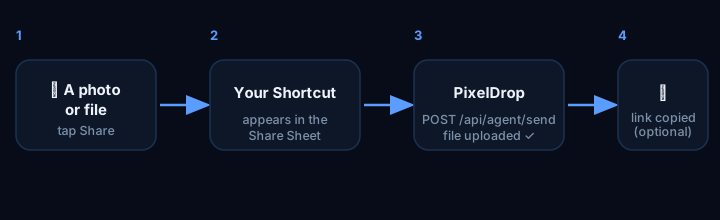
- On your iPhone, open PixelDrop (pixeldrop.ca), sign in, open Settings and, in the card Add PixelDrop to your phone, tap Add to my phone. PixelDrop copies your personal address for you. (On a computer, the same button shows a QR code: scan it with your iPhone to continue there.)
- The Shortcuts app opens with the shortcut “Send to PixelDrop”. A box asks for your address: touch it, paste (touch and hold, then Paste), then tap Add Shortcut.
- Share a photo or a file. In Photos or Files, tap the Share button, choose Send to PixelDrop, and type a name for the file when it asks. It arrives in your PixelDrop under that name.
- Check that it worked. Back on the PixelDrop page, the Settings card changes to “✓ Your phone is connected” as soon as the first file arrives.
Keep your address private. Anyone who has it can send files into your account. If it leaks, or you lose the phone, open Settings and tap Unlink this phone: the address stops working right away. For scripts and other tools, Settings also has a section “For scripts and other tools”.
Signing in without a password
Besides a username and password, PixelDrop offers two faster ways in, once set up from Settings:
- Your face or fingerprint (a passkey). In Settings, add a passkey; your phone or computer then lets you sign in with Face ID, a fingerprint, or Windows Hello — no password typed, no code to remember. PixelDrop never sees your face or fingerprint itself, only a confirmation from your device.
- Your Nimiq wallet. Link a wallet in Settings, then use “Sign in with Nimiq” on the login page. Your wallet signs a one-time message to prove it's you; PixelDrop never holds your wallet's keys.
Either way, sign in normally the first time so you can turn these on — see the section below if you get stuck linking one.
5. Automatic backup of your computer (TimeVault)
TimeVault copies folders you choose — Pictures, Documents, anything — into PixelDrop on a schedule, so a broken computer never means lost memories. It's included with Membre. It works through a small program called PixelDrop Backup (Windows and Linux).
- Open the TimeVault tab and click Download PixelDrop Backup for your computer, then open the file you downloaded. On Linux (Ubuntu, Debian, Mint), open the
.debfile with the software installer, or use the apt instructions shown under the download button. - Click “+ Add a computer” on the site. It gives you a one-time code — copy it.
- In PixelDrop Backup, paste the code (the site's address is already filled in). Then create your recovery key (see the next section — this one matters!).
- Choose folders and how often each is backed up: every 2, 5, 10 or 15 days. Only new or changed files are sent. You can change this any time.
PixelDrop Backup keeps working quietly in the background. To open it later: on Windows, click its icon next to the clock (bottom-right; it may be under the small ^ arrow) or type “PixelDrop Backup” in the Start menu. On Linux, press the Super key and type “PixelDrop Backup”.
Backups are private: they can never be shared, and they are locked (encrypted) on your own computer before they leave it.
6. Your recovery key — please read
When you set up TimeVault, PixelDrop Backup gives you a recovery key: a long line of letters and numbers. It is the only thing that can unlock your backups on a new computer, or after a computer is lost.
Nobody can recover it for you — not even us. That is what makes your backups truly private. If it's lost and no connected computer still has it, the backups cannot be opened by anyone.
- Save it right away: in a password manager, or press Print in the app and keep the page somewhere safe, like a drawer or a safe. Don't just leave it on the same computer you're backing up.
- See it again: on a computer that is already connected, open PixelDrop Backup and click Show my recovery key.
- New computer: connect it, then type the key when the app asks.
- Really lost it? In the TimeVault tab, use Lost your recovery key?. It lets you start over — but it deletes your encrypted backups, because they can't be opened anymore.
Also: anyone who holds your key can open your backups, so don't post it or send it by email.
7. Space and Membre
Every account stores its files in its own Pixeldrain account, connected in Settings — PixelDrop has no storage of its own. Connecting it also gives you 15 days of every PixelDrop feature. After that, Membre is a separate, optional membership that doesn't add storage; it unlocks the features PixelDrop itself provides:
| Plan | Price |
|---|---|
| Member | $30.00 / year |
Share links (with password, expiry and an access log), proof of existence, connected apps such as PhoenixMail, TimeVault (automatic, end-to-end encrypted desktop backup) and Drop Requests (let anyone send you a file with no account needed). You can pay with PayPal or with NIM (the Nimiq cryptocurrency, through its wallet window). Membre lasts for the year you paid for; you'll get a reminder before it ends. If it lapses, TimeVault backups, share links, Drop Request links and connected apps are paused — nothing is deleted, your files and existing backups stay exactly as they are, and everything works again as soon as you are a Membre.
8. Keeping your files safe
- Use a strong, unique password and turn on two-step login.
- Keep your own copy of anything irreplaceable. No service is perfect; a good rule is “3 copies, 2 kinds of storage, 1 somewhere else”.
- Large files can expire. Files over about 200 MB are stored by an outside service that may remove a file nobody has downloaded for roughly 60 days. PixelDrop shows a ⏳ badge and emails you before that happens — download the file (or open its preview) to reset the countdown. Smaller files are kept alive automatically.
- What's private? Files you upload yourself are stored with our storage partner and are not end-to-end encrypted (see the Privacy Policy for the plain details). TimeVault backups are end-to-end encrypted.
9. Proof of existence
Next to a file that has one, you'll see a chain-link icon button. This lets you anchor the file — prove, publicly and permanently, that it existed at a specific moment — without ever putting the file itself, or even its name, anywhere public.
Here's what actually happens: PixelDrop calculates a fingerprint of the file (a short code that could only come from that exact file's content — change even one letter, and the fingerprint changes completely). When you click Anchor now, your own Nimiq wallet signs a tiny, free transaction whose only content is that fingerprint, and PixelDrop sends it to the Nimiq blockchain — a public ledger nobody, including PixelDrop, can edit or backdate afterwards. Once it's confirmed (a few seconds), the icon turns to and you can copy the transaction's hash: anyone can look that transaction up and see the fingerprint and its timestamp, but never the file behind it.
Why would you want this? A photographer proving when a picture was taken, a writer proving a draft existed before a certain date, anyone wanting a paper trail — all without publishing anything sensitive. This uses your linked Nimiq wallet (see above); files uploaded before this feature existed can't be anchored.
Something isn't working?
- I didn't get the confirmation email.
- Check your spam or junk folder, wait a couple of minutes, and make sure the address is spelled correctly. Still nothing? Contact support.
- I forgot my password.
- On the sign-in page, choose Forgot your password?, type your email address, then enter the code we send you and pick a new password. The code lasts 15 minutes. If you no longer have access to that email, contact support.
- I can't upload a file.
- Usually your storage is full (check the bar on the Dashboard) or the file is bigger than allowed here. Delete something or add space, then try again. On a very slow connection, large files can also time out — try again on a faster one.
- The Install button does nothing.
- Browsers only allow installing from a secure (https) address, and Firefox on computers can't install web apps. Use Chrome or Edge, or follow the phone steps above.
- PixelDrop Backup says “Enter your recovery key”.
- Your account already has a key, made on another computer. Open PixelDrop Backup there and click Show my recovery key, then type it here.
- “Back up now” is greyed out.
- The app is waiting for your recovery key. Enter it and it becomes available.
- I deleted something by mistake.
- Deleted files can't be brought back — that's why we ask you to type DELETE. If you have a TimeVault backup of it, restore it from the app.
- “Sign in with Nimiq” or a passkey says no account is linked.
- Log in the normal way first, then link your wallet or add a passkey in Settings — after that, the fast sign-in works.
- My phone won't let me add a passkey (Face ID).
- On iPhone, another app (like a password manager) may be set as the default place for passkeys. Go to Settings → General → AutoFill & Passwords, and make sure “Passwords” (Apple's own) is enabled.
Still stuck? We're happy to help.
Words explained
- Cloud / cloud storage
- Your files kept on a company's computers on the internet, reachable from any device.
- Upload / download
- Upload = send a file from your device to PixelDrop. Download = bring a copy back to your device.
- Quota
- How much space you may use. It is the space of your own Pixeldrain account: PixelDrop adds no limit of its own.
- Share link
- A web address that lets whoever has it download one file.
- Backup
- An extra copy of your files, kept so you can get them back if the originals are lost.
- Encryption
- Scrambling a file so it can only be read with a secret key. TimeVault backups are scrambled on your computer before they're sent.
- Recovery key
- The secret key that unscrambles your TimeVault backups. Keep it safe — it can't be replaced.
- Two-step login (2FA)
- A second check when you log in, like a code from your phone, so a stolen password isn't enough.
- Passkey
- A way to sign in with your face, fingerprint or device PIN instead of a password — set up once in Settings.
- Nimiq wallet
- An app (like the Nimiq Hub) that holds your NIM cryptocurrency and lets you sign in or pay without ever giving PixelDrop your keys.
- Fingerprint (of a file)
- A short code calculated from a file's exact content — the same file always gives the same fingerprint, and even a tiny change gives a completely different one. Used to prove a file existed without publishing it (see “Proof of existence”).
- Blockchain
- A public, shared record that, once something is written to it, nobody can secretly edit or erase — used here only to timestamp a file's fingerprint, never the file itself.